

SCP: Secret Laboratory

SCP: Secret Laboratory

Not enough ratings
SCP Server on Docker
By Zeep (Bulletdrone)
Explains how to setup the SCP SL Server on a docker container for more security when hosting.
   
Award
Favorite
Favorited
Unfavorite
Why?
Additional security when running your port-forwarded server on your home computers.
Setup
Get docker from https://www.docker.com/ and install it. Don't think you need to link your account or anything.

Find the latest updated fork of scpsl-docker. (Currently this seems to be https://github.com/serpi90/scpsl-docker) Do not download the repo directly, run the example command sequence on WSL, bash or any linux terminal with a small modification.


The change from this command to the one on the repo is that the github link uses serpi90 instead of the old FragSoc repo.

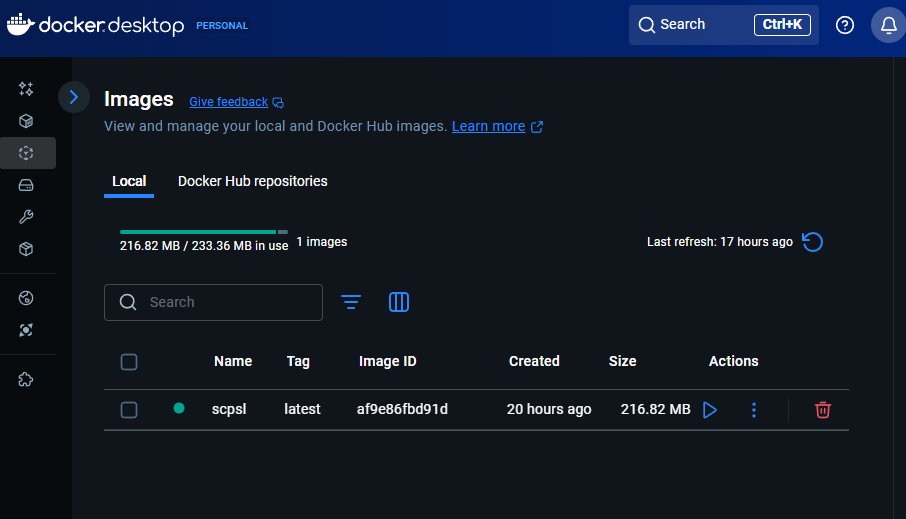
Docker.desktop images section should now show this.
Container setup
To setup the container is easy. Follow these steps:
  • Run the scpsl image and check optional settings.
  • Select these options, explained below.
    • Container name: Self explanatory.
    • Host port: The port that people will connect to with your gameserver. Recommended to take a random port number and not 7777.
    • Volumes: Any files that the docker creates will be redirected to the host path. Do this for /config so you can easily modify the config files.
    • Environment variables: EULA just has to be yes. Fork requires it. You can also set a custom port here but I didn't bother.
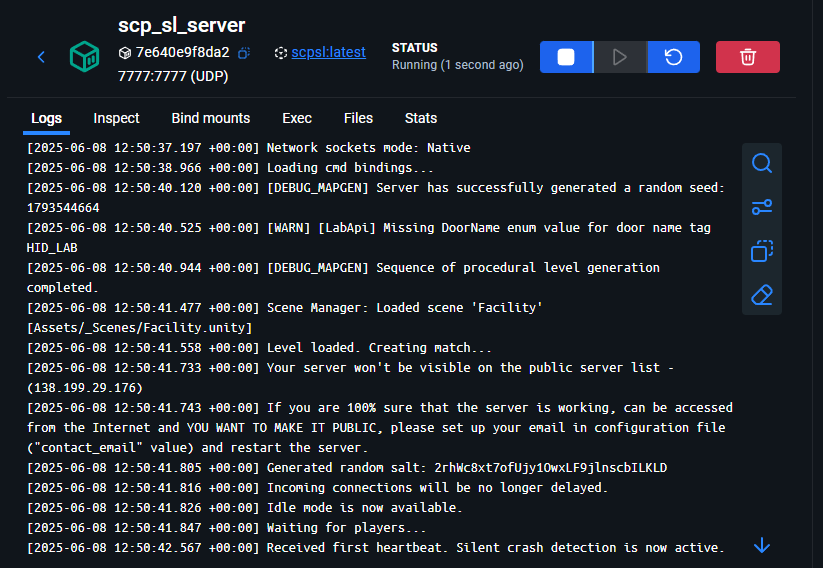
  • Press run, if everything worked then you should have a container that is running the server. On first run it will download the needed files, subsequent runs should be very fast.


After first run, you can change the config files via the host path you setup. If that doesn't work see below.
Weird things that happened and how to fix it.
I run the docker but the /config never gets exported to my given host path.
No idea why this happens, but we can fix this although it's annoying.
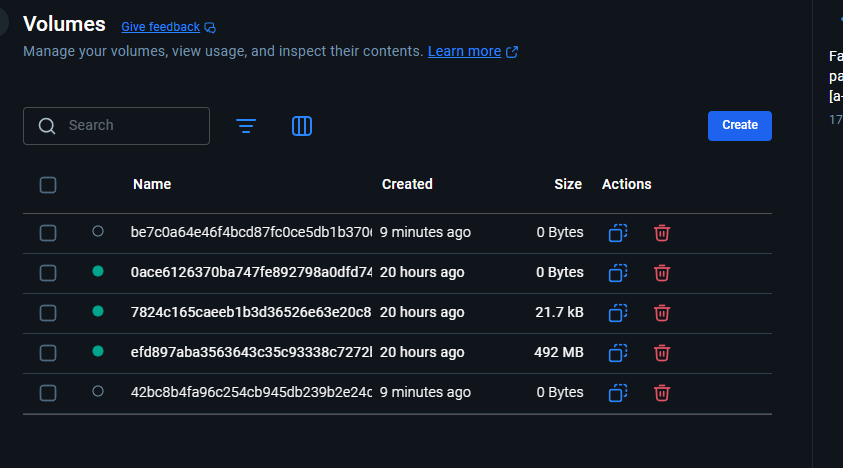
  • Go to volumes.
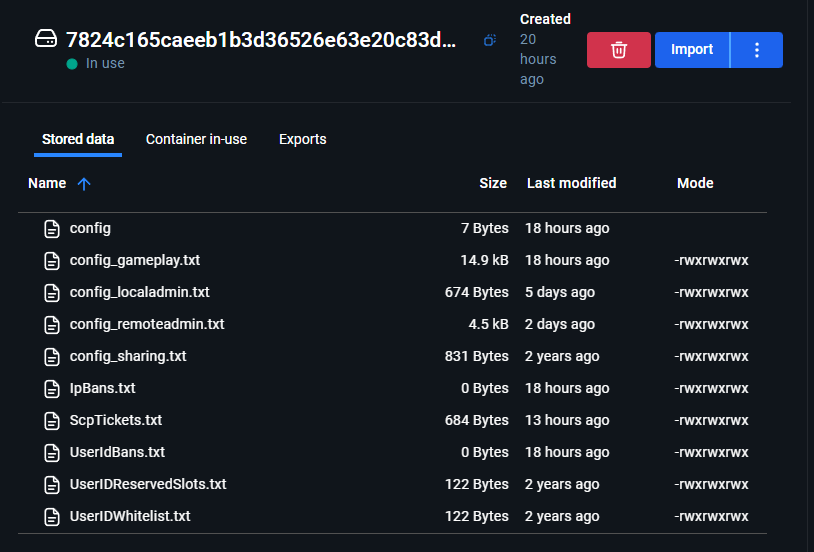
  • Find the correct volume that has the config files for your container.
  • You can now do 2 things depending on what you want.
    • Small edits: Edit the files directly by just using the docker.desktop editor functionality.
    • Big edits/copy from existing server: Import existing config files from your host pc to the docker. This requires the files to be in a .tar archive file. You can put files in a .tar via 7zip or similar tools.
Todo (guide knowledge)
  • How to run docker fully in commandline. I don't care to do this but if you do, feel free to comment below on how you managed to do so and I will add it to the guide.